
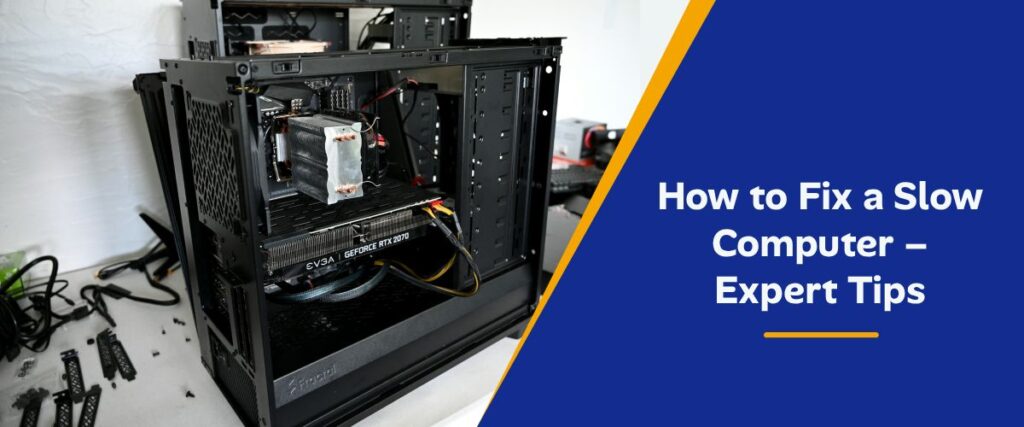
In a technology-driven era, computer performance plays a vital role in daily productivity, and a slow computer can be incredibly frustrating. Whether you’re working, gaming, or streaming, performance issues slow you down and disrupt your day. At Geek Care Team, we help people just like you get their devices running smoothly again. In this guide, we’ll share expert-level tips to fix a slow computer and keep it running at peak performance.
1. Restart Your Computer Regularly
It might sound basic, but one of the quickest ways to boost performance is to restart your PC. Restarting clears temporary data and resets background processes that may be slowing your system down. If your computer hasn’t been restarted in days or weeks, this should be your first step.
2. Close Unnecessary Programs
Too many programs running at once can consume your CPU and memory, leading to sluggish performance. Check what’s running in the background and close anything you don’t need. On Windows, you can open Task Manager with Ctrl + Shift + Esc to view and manage active processes.
3. Manage Startup Programs
Many applications automatically launch when your computer boots, which can slow down startup times and overall performance. Go to Task Manager → Startup and disable programs you don’t need to start automatically.
4. Free Up Disk Space
A crowded hard drive can dramatically slow down your PC. Remove old files, uninstall software you no longer use, and consider running the built-in Disk Cleanup tool in Windows to eliminate temporary files.
5. Defragment Your Hard Drive
If your computer uses a traditional HDD, defragmenting can help organize fragmented data and speed up read/write performance. Note that SSDs do not need defragmentation and doing so can reduce their lifespan.
6. Update Software & Drivers
Outdated software or device drivers can cause performance bottlenecks. Make sure your operating system, drivers, and applications are fully updated. This can also fix bugs that slow performance.
7. Scan for Malware and Viruses
Malicious software can run in the background and consume system resources without your knowledge. Run a full antivirus and anti-malware scan regularly to ensure your system stays clean.
8. Check Your Web Browser
If your computer is slow especially during browsing, the issue might be browser-related. Update your browser, remove unnecessary extensions, and clear your cache to improve speed.
9. Consider Hardware Upgrades
If performance still lags after cleanup and optimization, it might be time to upgrade components like RAM or switch from an HDD to an SSD. These upgrades can deliver significant speed improvements and make your system feel brand new.
10. Keep Your PC Physically Clean
For laptops especially, dust buildup can cause overheating, which leads your system to throttle performance to stay cool. Carefully clean vents and fans with compressed air to improve airflow.
When to Reach the Experts
If you’ve tried all the tips above and your computer is still slow, it may be time for professional help. At Geek Care Team, our certified technicians can diagnose deeper issues, optimize your system, and upgrade hardware when needed.
👉 We offer:
✔ Fast & affordable computer tune-ups
✔ Virus removal & malware cleanup
✔ Hardware upgrades (RAM, SSD)
✔ On-site and remote support
Final Thoughts
A slow computer doesn’t have to stay slow forever. With regular maintenance, smart cleanup, and the right optimizations, you can dramatically improve performance and extend the life of your device. Try these expert tips today — and if you need help, Geek Care Team is just a call away!